[iOS] Rick&Morty - #19 Character Info ViewModel
이번엔 Info셀에 실제 데이터를 가져와서 적용시킨다.
데이터 연결
먼저 설정해 놨던 더미 Text, image 들을 지우자. 그리고 viewModel의 데이터를 이용하여 초기화한다.
final class RMCharacterInfoCollectionViewCell: UICollectionViewCell {
    ...
    public func configure(with viewModel: RMCharacterInfoCollectionViewCellViewModel) {
        valueLabel.text = viewModel.value
        titleLabel.text = viewModel.title
    }
}
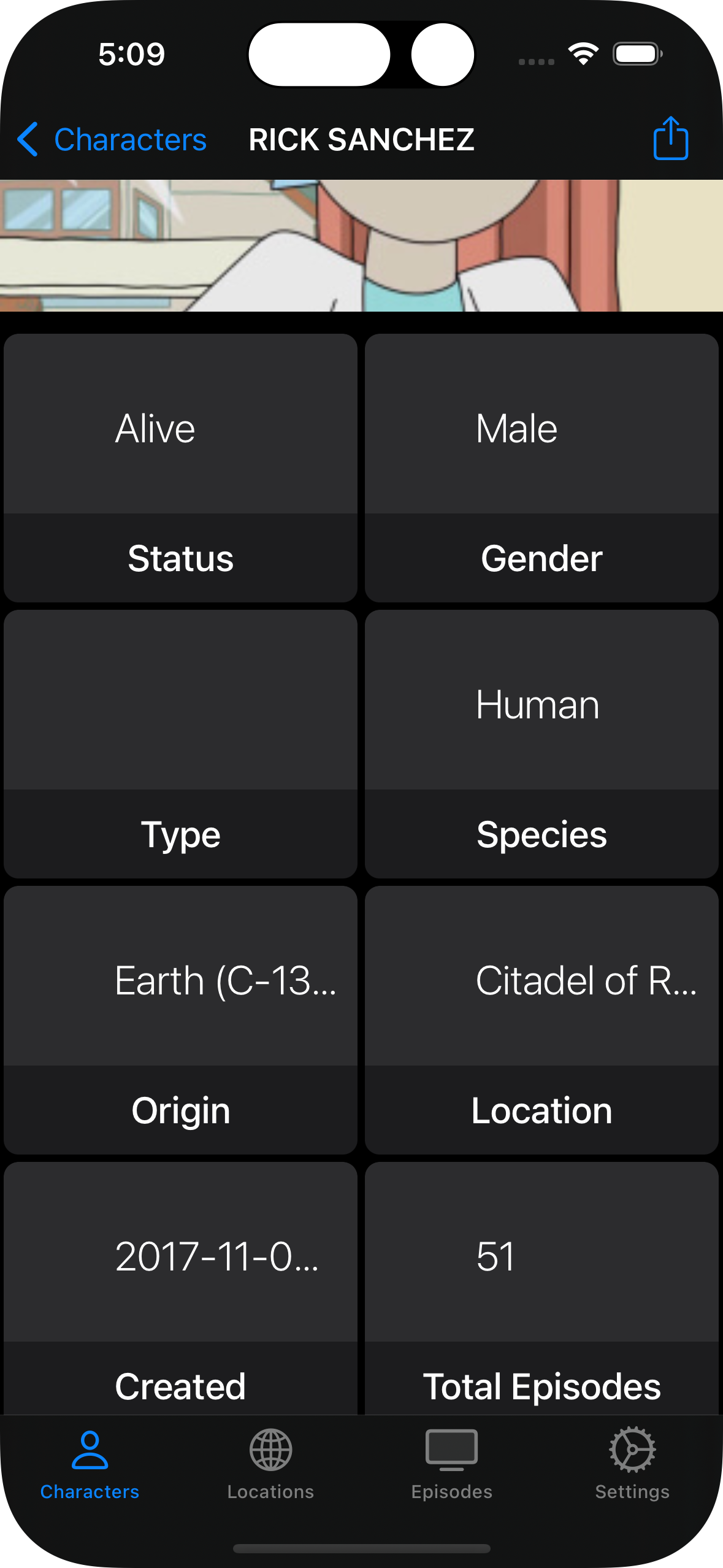
개선
개선할 점이 네 가지가 보인다.
- 이미지가 필요
- 문자열이 잘리고
- 날짜가 이상하게 보인다.
- 마지막으로 비어있는 Type은 그냥 안 보여주고 싶다.
이제 Cell의 text와 관련된 것들을 추상화하자.
우리는 Type이라는 enum을 만들어서 받아서 사용할 것이다. 기존에 사용하던 title은 init에서 생성해 주는 것이 아니라 computed property로 처리를 한다. Type은 이미 쓰이고 있는 키워드니깐 키보드 1 왼쪽에 있는 `를 입력하여 가두자
처리가 끝났다면 DetailVM에서도 init에 들어가는 매개변수를 수정해 주자
final class RMCharacterInfoCollectionViewCellViewModel {
    private let type: `Type`
    public let value: String
    public var title: String {
        self.type.displayTitle
    }

    enum `Type` {
        case status
        case gender
        case type
        case species
        case origin
        case created
        case location
        case episodeCount
        var displayTitle: String {
            switch self {
            case .status:
                return "some"
            case .gender:
                return "some"
            case .type:
                return "some"
            case .species:
                return "some"
            case .origin:
                return "some"
            case .created:
                return "some"
            case .location:
                return "some"
            case .episodeCount:
                return "some"
            }
        }
    }

    init (
        type: `Type`,value: String
    ) {
        self.value = value
        self.type = type
    }
}
final class RMCharacterDetailViewViewModel {
    ...
    private func setUpSections() {
        sections = [
            ...
            .information(viewModels: [
                .init(type: .status, value: character.status.text),
                .init(type: .gender, value: character.gender.rawValue),
                .init(type: .type, value: character.type),
                .init(type: .species, value: character.species),
                .init(type: .origin, value: character.origin.name),
                .init(type: .location, value: character.location.name),
                .init(type: .created, value: character.created),
                .init(type: .episodeCount, value: "\(character.episode.count)"),
            ]),
            ...
        ]
    }
    ...
}
이제 항목별 글씨 색상과 iconImage를 제작해서 넣어줄 것이다. 선언 자체는 옵셔널로 하는데 스위치로 케이스별로 받을 거라 그렇다. 색상은 모두 다르게 설정할 것이고 이미지는 bell로 통일해서 넣어보자
final class RMCharacterInfoCollectionViewCellViewModel {
    private let type: `Type`

    private let value: String

    public var title: String {
        self.type.displayTitle
    }

    public var displayValue: String {
        if value.isEmpty { return "None" }
        return value
    }

    public var iconImage: UIImage? {
        return type.iconImage
    }

    public var tintColor: UIColor {
        return type.tintColor
    }

    enum `Type` {
        case status
        case gender
        case type
        case species
        case origin
        case created
        case location
        case episodeCount

        var tintColor: UIColor {
            switch self {
            case .status:
                return .systemBlue
            case .gender:
                return .systemRed
            case .type:
                return .systemPurple
            case .species:
                return .systemGreen
            case .origin:
                return .systemOrange
            case .created:
                return .systemPink
            case .location:
                return .systemYellow
            case .episodeCount:
                return .systemMint
            }
        }

        var iconImage: UIImage? {
            switch self {
            case .status:
                return UIImage(systemName: "bell")
            case .gender:
                return UIImage(systemName: "bell")
            case .type:
                return UIImage(systemName: "bell")
            case .species:
                return UIImage(systemName: "bell")
            case .origin:
                return UIImage(systemName: "bell")
            case .created:
                return UIImage(systemName: "bell")
            case .location:
                return UIImage(systemName: "bell")
            case .episodeCount:
                return UIImage(systemName: "bell")
            }
        }
        ...
    }

    init (
        type: `Type`,value: String
    ) {
        self.value = value
        self.type = type
    }
}
final class RMCharacterInfoCollectionViewCell: UICollectionViewCell {
    ...
    private let valueLabel: UILabel = {
        let label = UILabel()
        label.translatesAutoresizingMaskIntoConstraints = false
        label.font = .systemFont(ofSize: 22, weight: .light)
        return label
    }()
    private let titleLabel: UILabel = {
        let label = UILabel()
        label.translatesAutoresizingMaskIntoConstraints = false
        label.textAlignment = .center
        label.font = .systemFont(ofSize: 20, weight: .medium)
        return label
    }()
    private let iconImageView: UIImageView = {
        let icon = UIImageView()
        icon.translatesAutoresizingMaskIntoConstraints = false
        icon.contentMode = .scaleAspectFit
        return icon
    }()
    private let titleContainerView: UIView = {
        let view = UIView()
        view.translatesAutoresizingMaskIntoConstraints = false
        view.backgroundColor = .secondarySystemBackground
        return view
    }()

    override init(frame: CGRect) {
        super.init(frame: frame)
        contentView.backgroundColor = .tertiarySystemBackground
        contentView.layer.cornerRadius = 8
        contentView.layer.masksToBounds = true
        contentView.addSubviews(titleContainerView, valueLabel, iconImageView)
        titleContainerView.addSubviews(titleLabel)
        setUpConstraints()
    }
    required init?(coder: NSCoder) {
        fatalError()
    }
    private func setUpConstraints() {
        NSLayoutConstraint.activate([
            titleContainerView.leftAnchor.constraint(equalTo: contentView.leftAnchor),
            titleContainerView.rightAnchor.constraint(equalTo: contentView.rightAnchor ),
            titleContainerView.bottomAnchor.constraint(equalTo: contentView.bottomAnchor),
            titleContainerView.heightAnchor.constraint(equalTo: contentView.heightAnchor, multiplier: 0.33),

            titleLabel.leftAnchor.constraint(equalTo: titleContainerView.leftAnchor),
            titleLabel.rightAnchor.constraint(equalTo: titleContainerView.rightAnchor),
            titleLabel.topAnchor.constraint(equalTo: titleContainerView.topAnchor),
            titleLabel.bottomAnchor.constraint(equalTo: titleContainerView.bottomAnchor),

            iconImageView.heightAnchor.constraint(equalToConstant: 30),
            iconImageView.widthAnchor.constraint(equalToConstant: 30),
            iconImageView.leftAnchor.constraint(equalTo: contentView.leftAnchor, constant: 20),
            iconImageView.topAnchor.constraint(equalTo: contentView.topAnchor, constant: 36),

            valueLabel.leftAnchor.constraint(equalTo: iconImageView.rightAnchor, constant: 10),
            valueLabel.rightAnchor.constraint(equalTo: contentView.rightAnchor, constant: -10),
            valueLabel.topAnchor.constraint(equalTo: contentView.topAnchor, constant: 36),
            valueLabel.heightAnchor.constraint(equalToConstant: 30),
        ])
    }

    override func prepareForReuse() {
        super.prepareForReuse()
        valueLabel.text = nil
        titleLabel.text = nil
        iconImageView.image = nil
    }
    public func configure(with viewModel: RMCharacterInfoCollectionViewCellViewModel) {
        titleLabel.text = viewModel.title
        valueLabel.text = viewModel.displayValue
        iconImageView.image = viewModel.iconImage
        iconImageView.tintColor = viewModel.tintColor
        titleLabel.textColor = viewModel.tintColor
    }
}
Cell의 VM에서 Some이라고 한 게 조금 신경 쓰인다. enum Type에 String 프로토콜을 따르게 한 뒤, 각 케이스별로 rawValue를 대문자로 표시하게 하자. 모든 케이스를 그렇게 하는 것은 아닌데 에피소드 카운트는 수동으로 설정한다. 실제로 우리의 에피소드 카운트는 연산을 통해서 결정된다.
var displayTitle: String {
            switch self {
            case .status,
                    .gender,
                    .type,
                    .species,
                    .origin,
                    .created,
                    .location:
                return rawValue.uppercased()
            case .episodeCount:
                return "EPISODE COUNT"
            }
        }
다음으로 3번 문제를 해결해야 한다. 날짜의 경우 ISO 8601 포맷으로 출력되고 있다. 이걸 우리 눈에 편하게 보이려면 DateFormatter를 써야 한다. 일단 VM에서 만들고 나중에 이동할 것이다. 해당 메서드를 생성하는 것은 static으로 관리하는 게 좋다. 이것을 반복해서 생성할 경우 성능 오버헤드 측면에서 많은 비용이 든다.
들어오는 포맷이 보통 쓰이는 양식과는 조금 달라서 찾느라 시간이 조금 걸렸을 것이다. 두 가지 데이트포매터를 사용하는데 displayValue 프로퍼티에서 value의 date를 가져오고 이를 이용하여 short버전으로 생성한다. 이미 있는 날짜 데이터를 변환하는 건 스위프트에서 사용하는 양식으로 변경하기 위함이다.
static let dateFormatter: DateFormatter = {
       let formatter = DateFormatter()
        formatter.dateFormat = "yyyy-MM-dd'T'HH:mm:ss.SSSSZ"
        // 만약 한국 시간으로 출력하고 싶다면
        formatter.timeZone = .current
        return formatter
    }()

    static let shortDateFormatter: DateFormatter = {
       let formatter = DateFormatter()
        formatter.dateStyle = .medium
        formatter.timeStyle = .short
        return formatter
    }()

    public var title: String {
        self.type.displayTitle
    }

    public var displayValue: String {
        if value.isEmpty { return "None" }

        if let date = Self.dateFormatter.date(from: value),
           type == .created {
            return Self.shortDateFormatter.string(from: date)
        }
        return value
    }
출력은 정상적으로 되겠지만 지금 문제는 일부분이 잘려서 나오는 것이다. 이를 해결하기 위해서는 애초에 짧은 문자열을 출력하는 방식의 숏포맷을 선택하던지 아니면 View에서 line 언래핑을 하는 것이다. 흔히 하던 대로 numberOfLines를 0으로 설정해 보자.
그런데 이상하게도 안 된다. 이 상황에서 먼저 의심해봐야 할 것은 valueLabel이 맞는지 배경색등으로 확인하는 것이다. 배경색으로 확인해 본 결과 애초에 영역이 매우 제한적으로 세팅되어 있다. 만약 영역 자체가 짧게 되어있다면 numberOfLines를 길게 하더라고 별 소용이 없다.
final class RMCharacterInfoCollectionViewCell: UICollectionViewCell {
    ...
    private let valueLabel: UILabel = {
        let label = UILabel()
        label.translatesAutoresizingMaskIntoConstraints = false
        label.numberOfLines = 0
        label.font = .systemFont(ofSize: 22, weight: .light)
        return label
    }()
...
    private func setUpConstraints() {
        NSLayoutConstraint.activate([
            ...
						valueLabel.topAnchor.constraint(equalTo: contentView.topAnchor),
            valueLabel.bottomAnchor.constraint(equalTo: titleContainerView.topAnchor),
        ])
    }
    ...
}
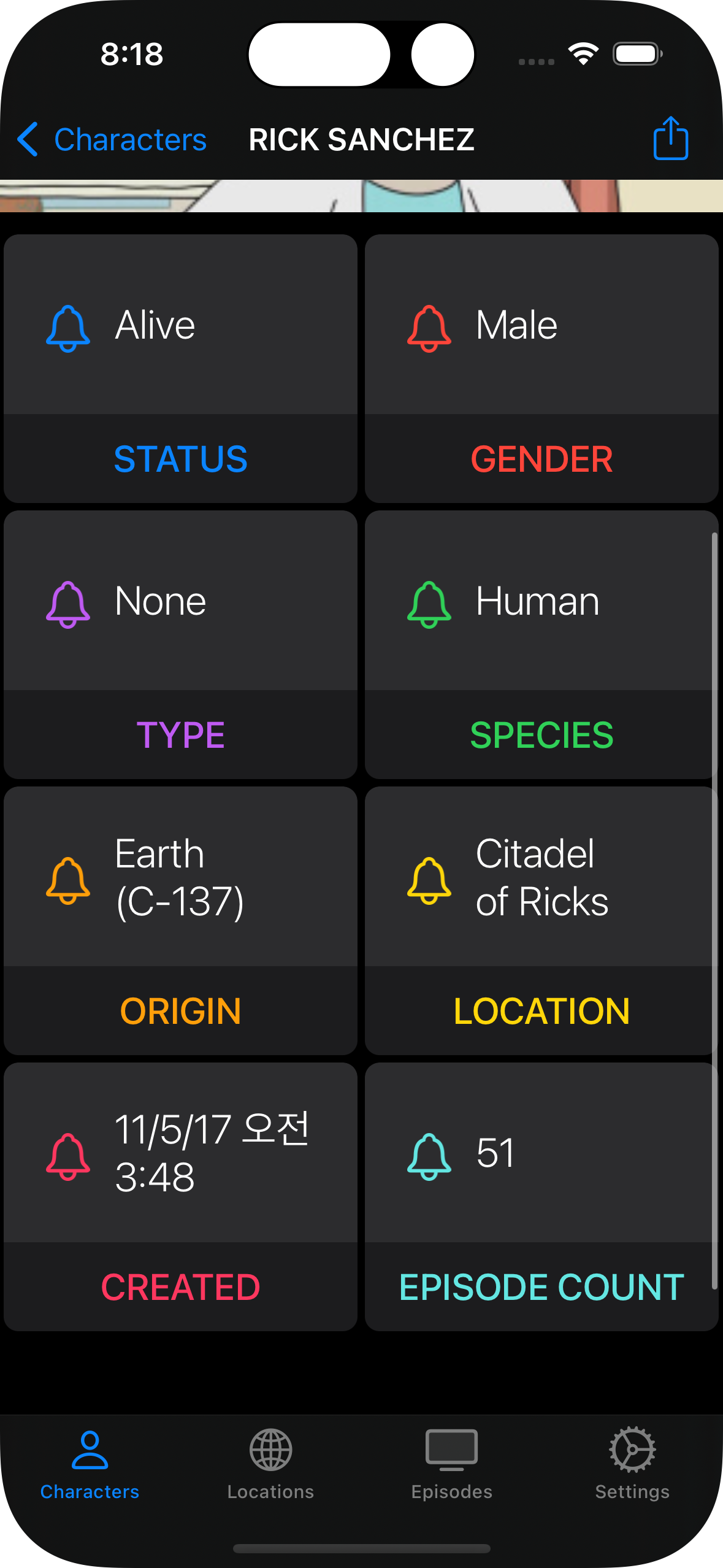
의도한 셀이 표시가 된다.